Email notifications for expiring deadlines
RZBneo automatically sends email reminders for upcoming and expired deadlines of train drivers. The system checks the deadlines every night and informs the responsible recipients when action is required.
There are two independent sending methods:
- Personal notifications: Each registered user determines which emails they want to receive at their login address.
- AOE distribution lists: Administrators can set up distribution lists for an issuing organizational unit (AOE). Recipients do not need to have an RZBneo account. For example, shared functional mailboxes can be notified.
Every sending attempt is stored in a searchable Audit Log.
Open Notifications
The Notifications page is accessible via the main menu for every logged-in user.
- Standard users see only their personal settings.
- Administrators see the three tabs SettingsAOE Lists and Audit Logs
The Settings tab works identically for administrators and standard users. Administrators also only configure their own personal notifications there.
Activate Personal Notifications
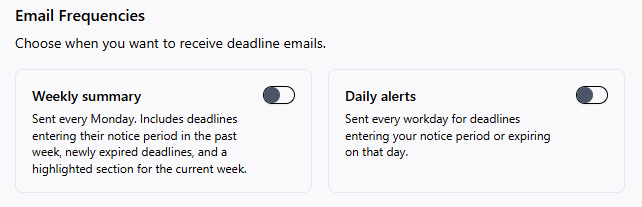
Each user has their own settings record. The two sending intervals can be activated independently of each other.
Notification Intervals
Setting | Meaning |
|---|---|
Weekly Summaries | A summary every Monday morning for the upcoming week |
Daily Alerts | A daily email regarding due deadlines and deadlines that have entered the notification period |
Both settings are disabled by default. New users will therefore not receive any notifications initially.
Deadline Categories
The categories determine which types of deadlines are considered in the emails.
Currently, notifications are generated for these categories:
- Suitability
- General Expertise
- Knowledge
- Driver's License Expiry
- Further Monitoring
- Additional Certificate
If RZBneo+ is part of your license, notifications for the following categories can also be activated:
- RZBneo+ Tasks
- RZBneo+ Functions
For personal notifications, the categories are activated by default. As soon as a dispatch interval is activated, the user will therefore generally receive notifications for the supported categories. Individual categories can be deactivated if required.
Override recipient address
Optionally, an alternative recipient address can be entered. All personal notifications will then be sent to this address, while the login address of the user account remains unchanged.
This allows notifications to be forwarded to, for example, a team mailbox or a private address.
Notification period
The notification period is not set on the Notifications page. RZBneo uses the Vorlaufzeit already configured in the system. By default, it is 90 days.
This ensures that the deadlines in the emails match the deadlines on the dashboard cards and in the deadline views.
Personal notifications refer to all train drivers of the company – not just the drivers of their own AOE.
Manage AOE distribution lists
Administrators can create and manage distribution lists under Notifications → AOE Listen
A distribution list contains the following settings:
Field | Description |
|---|---|
Name | Freely selectable designation, for example "On-call duty" or "Weekly management overview" |
Issuing organizational unit | Issuing organizational unit. Determines which drivers the list informs about |
Recipients | One or more email addresses, separated by commas |
Frequency | Weekly and daily notifications, independent of each other |
Categories | The available deadline categories |
Notification language | Language of the emails |
Active | Activates or deactivates the list |
ℹ️ Recipients do not need to be registered as users in RZBneo.
ℹ️ Shipping intervals and categories are deactivated by default for new distribution lists; an administrator must explicitly activate them.
💡 An AOE can have multiple distribution lists. For example, weekly summaries can be sent to management and daily notifications to an on-call mailbox.
AOE distribution lists consider the train drivers assigned to the respective issuing organizational unit.
Fixed notification period for distribution lists
AOE distribution lists always use a fixed notification period of 90 days. A user's personal lead time or the company's lead time is not applied to distribution lists.
Deactivate distribution list
A list can be deactivated without deleting it. This immediately stops sending. The settings and previous sending history are retained.
Only administrators are allowed to create, edit, or delete AOE distribution lists. This restriction prevents regular users from redirecting notifications with personal deadline data to their own or unauthorized addresses.
When are emails sent?
RZBneo performs two scheduled sending operations:
- Daily Notifications: every day at 07:00 UTC
- Weekly Summaries: on Mondays at 07:00 UTC
Daily sending also occurs on weekends and holidays. The time is processed in UTC. For example, during Central European Summer Time, 07:00 UTC corresponds to 09:00 local time.
Daily Notifications
A deadline is considered in the daily email if it:
- is due on the current day,
- is already within the notification period, or
- expired no more than seven days ago.
ℹ️ Considering expired deadlines serves as a catch-up mechanism. For example, if a scheduled delivery fails due to maintenance or a system outage, the deadline will still be considered during the next successful delivery. Deadlines that expired more than seven days ago will not be sent retrospectively.
Weekly Summary
The Monday email is divided into three sections:
Section | Content |
|---|---|
This Week | Deadlines due within the next seven days |
Entry into the notification period in the past seven days | Deadlines whose notification period began in the past week |
Newly expired in the past seven days | Deadlines that expired in the past week |
Empty sections will also be displayed. In this case, the message „No deadlines in this period.“
Why isn't the same deadline repeated daily?
Each deadline generates a maximum of two notifications per recipient address:
- Notification: as soon as the deadline is first detected within the notification period
- Due date: as soon as the deadline is first detected on or after the due date
After that, no further regular reminders will be sent for this deadline.
Delivery is saved per recipient address. If a deadline is sent to multiple addresses on a distribution list, each address is treated independently. If a deadline is extended or renewed, the new date is considered a new deadline. The notification cycle then restarts.
If a delivery fails, the deadline is not marked as delivered and will be attempted again with the next delivery. Multiple failed delivery attempts followed by a successful delivery are therefore normal.
Languages
Personal Notifications
Personal emails are always created in the language of the personal user interface. If the emails should appear in a different language, the user must change their language setting.
AOE Distribution Lists
For distribution lists, the language is set directly in the list via Notification Language . This is necessary because external recipients may not be RZBneo users and therefore do not have a personal interface language.
Available Languages:
- German
- English
- Slovak
- Dutch
With Adapt to recipient's language, the language for mixed distribution lists can be adapted:
- Registered RZBneo users receive the email in their own language.
- Unregistered recipients receive the language of the distribution list.
If the option is deactivated, all recipients receive the language set in the distribution list.
Check Audit Log
Administrators can find under Notifications → Audit Logs a searchable overview of all sending attempts.
Displayed Information
- Timestamp
- Recipient Address
- Source, i.e., user or AOE distribution list
- Category
- Sending Interval
- Status
Filter
The audit log can be filtered by the following criteria:
- Status
- Source
- Recipient address via free text search
Status
Status | Meaning |
|---|---|
Success | The email was handed over to the mail server |
Failed | The sending attempt failed. The SMTP error message is stored in the details |
Skipped | There were no matching deadlines or all matching deadlines have already been notified |
When an entry is opened, additional details are displayed. This includes the trigger reference, which identifies the specific triggering deadline:
<driver>:<deadline type>:<date>:<phase>
This reference helps answer the question of why a specific recipient received an email.
The recipient address is stored directly in the audit entry. The shipping history therefore remains even if the associated user account is deleted later.
Unsubscribe from email notifications
The emails do not contain an unsubscribe link.
- Users can deactivate their personal notifications in their own settings.
- External recipients of an AOE distribution list cannot unsubscribe themselves.
- An administrator must remove the address in question from the list or deactivate the distribution list.
FAQ
I have activated notifications, but I am not receiving an email
Check:
- Is at least one shipping interval activated?
- Are the desired supported categories activated?
- Are there drivers with deadlines within the notification period?
- Are there entries in the audit log with the status "Skipped
Why am I receiving an email about a driver who is not assigned to my AOE?
Personal notifications refer to all train drivers of the company. They are not limited to the user's AOE. AOE distribution lists, on the other hand, only consider the drivers of the respective issuing organizational unit.
I repeatedly receive reminders for the same deadline
A deadline should generate at most one reminder and one due date notification. Check if the deadline date has been changed in the meantime or if the deadline has been renewed. A new date starts a new notification cycle.
A person continues to receive emails even though they have left the company
Remove the address from the corresponding AOE distribution list or deactivate the list. An external recipient address cannot remove itself via an unsubscribe link.
The email is sent in the wrong language
For personal notifications, the user interface language determines the email language.
For AOE distribution lists, you can change the notification language or Adapt to recipient's language enable.
An email was not delivered
Open Notifications → Audit Logs and filter by status Failed. Open the relevant entry and check the saved SMTP error message.