Views can be easily personalized in RZBneo. The following settings are available:
 Customize Columns
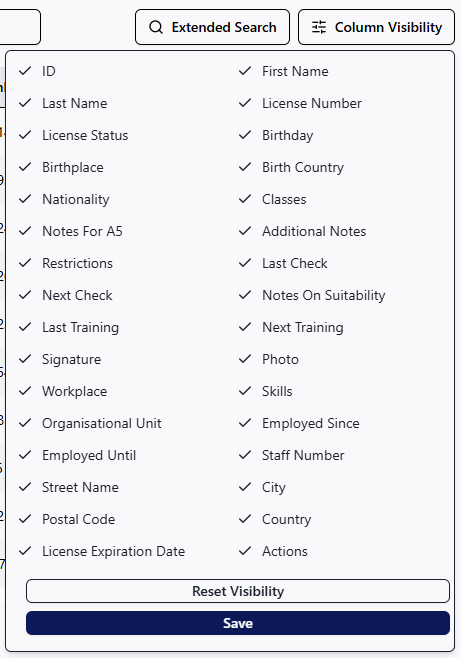
Above each table, there is an option to customize the displayed columns. Click on  to expand the menu item. You can then select which columns should be shown or hidden in the table below by checking or unchecking the boxes. You can save your selection by clicking on Save . In the future, the edited list will retain this appearance. If you want to return to the standard view (all columns are displayed), use the button Reset Visibility
Sort Columns
 By clicking on a column header in a table, you can sort the table by the selected column in ascending (1st click) or descending (2nd click) order.
Above each table header, there is a search field on the left that allows for a simple search within the table.

❗
Please note that not all columns can be searched using this search field; only those containing the most important information—such as first name, last name, locomotive operator’s license number, etc.—can be searched. For a more complex search and to filter the table, please use the Extended Search feature described below.
Depending on the displayed table, it is possible to filter the data records according to the displayed columns. To do this, click on the area  . Here you have the option to either make a selection from a list, fill in a free text field, or specify a search range (From - To) for each data field. The input option depends on the data type of the field.
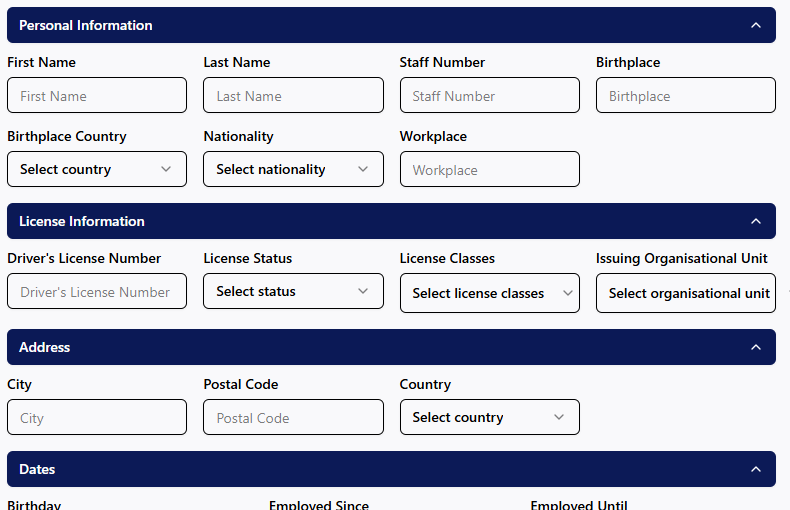
As soon as you make an entry, the table below will be filtered and displayed accordingly.