Creating and Replacing a Supplementary Certificate
You create and replace supplementary certificates via the Supplementary Certifications menu item. To do this, follow the steps below:
Creating a draft
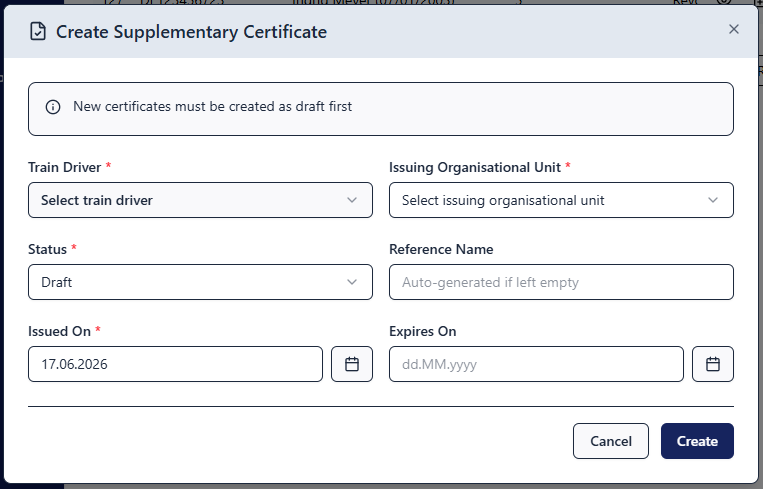
Every process for creating or replacing a supplementary certificate begins with creating a draft of a new certificate. You generate this by clicking on under the Supplementary certificate menu item below the displayed table. In the input form, you can now enter all the necessary information for the supplementary certificate, such as the issue date, the expiry date, and optionally a reference number. Assign the certificate to the desired employee and check whether the certificate is being issued via the correct issuing organisational unit. If necessary, select the correct organisational unit from the list. Click on Create to create the draft.
You can then download the draft by clicking on and check that all information is correct before issuing the supplementary certificate. This generates a document which is clearly marked as an invalid document due to the red imprint Certificate is not valid!. Before you can download a valid document, you must issue the certificate.
Issuing a supplementary certificate
Once you have checked the draft of the certificate, you can now officially issue it. This turns the draft into a valid entry in the register. To issue the draft, click on in the row of the corresponding entry in the table.
You now have one more opportunity to correct information regarding the supplementary certificate. If all information is correct, issue the certificate by clicking on . You can then download the valid document.