Dashboard
After logging in, the dashboard is displayed first. This provides an overview of all employees with an active and valid additional certificate in the company and provides information on deadlines and additional certificates.
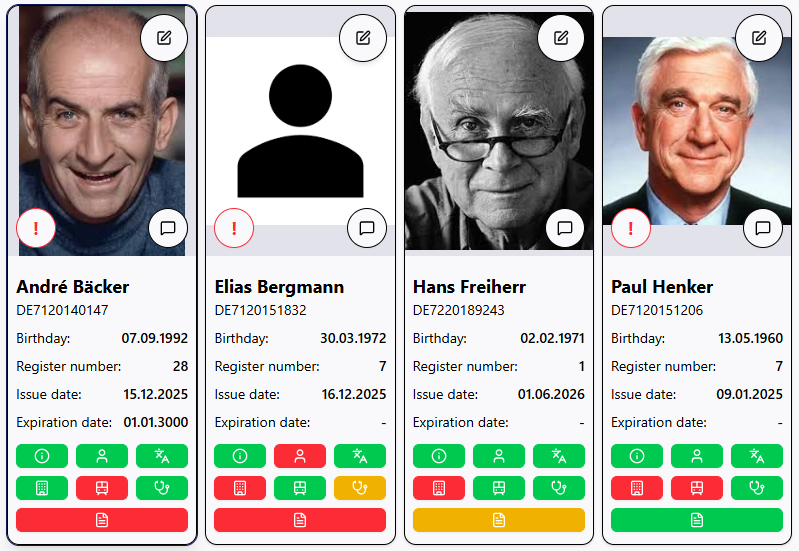
Information about the employee and the active additional certificate
Below the employee's picture, their date of birth, the current registration number of the active and valid additional certificate, the issue date, and, if applicable, the expiry date of the additional certificate are displayed. If there is a red circle with an exclamation mark 
Dashboard Functions
By clicking on the pencil icon
Using the speech bubble icon
Buttons for deadline monitoring with color marking
Below the employee details and their certificate, there are seven buttons that provide a brief overview of the status of various deadline types. Clicking on the respective buttons will display further information.
Color coding
The status of the deadlines is highlighted by color using a traffic light system. The following applies:
Views when clicking the buttons


Dashboard Filtering and Search
The dashboard offers a simple search function that can be used to search for employees' first and last names.
Employees can be filtered by organizational unit using the drop-down menu next to the search.

Furthermore, the dashboard view can be filtered so that only employees for whom at least one deadline is about to expire or has already expired are displayed. This allows you to quickly and easily identify where action is needed. Use the slider at the top right and set it to critical only
