Languages, Infrastructures, Series
The master tables for entering the skill designations available in RZBneo in the categories Language, Infrastructure, and Series allow you to define standardised designations, which are then available in the system as selectable options.
Creating new entries
Click on Add entry below the displayed table in the respective menu item to create a new designation. Enter the desired designation in the input form and specify whether this entry should be a default value. Save your entries.
Default values
Skills that are to be automatically assigned to every newly created train driver can be defined as default values in the master tables. When a new train driver is created via the train driver table, those default values are already pre-selected and you only need to enter the individually applicable date values for the acquisition as well as the last and next audit.
Editing existing entries
Edit existing skill designations by clicking on

Special features for Series
In the case of Series designations, the following additional attributes are available:
- UIC type code
- UIC country code
- Assignment of the Series to a Vehicle Cluster
Whether the UIC type and country code should be printed on the supplementary certificate can be set individually for each organisational unit. To do this, go to the Issuing organisational units menu item in the administration area, edit the desired organisational unit, and check or uncheck the Output UIC type and country code checkbox.
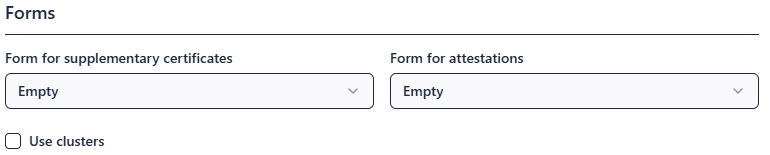
Assigning a Series to a Vehicle Cluster enables the output of clusters on the supplementary certificate. To activate the output of clusters, check the Use Vehicle Cluster instead of Series checkbox in the Forms section in the editing view