---
title: "Permissions"
url: "https://support.rzbneo.de/en/article/permissions"
language: "en"
last_updated: "2026-06-22T13:28:48.574Z"
---
# Permissions
Setting Access and Editing Permissions
As an administrator, the rights of all users can be viewed and adjusted here. This menu item allows the definition of different roles with different access and write rights. It can be specified which user is allowed to access which table (read access) and whether it may be changed and edited by the user (write access).
### **Adding a new permission**
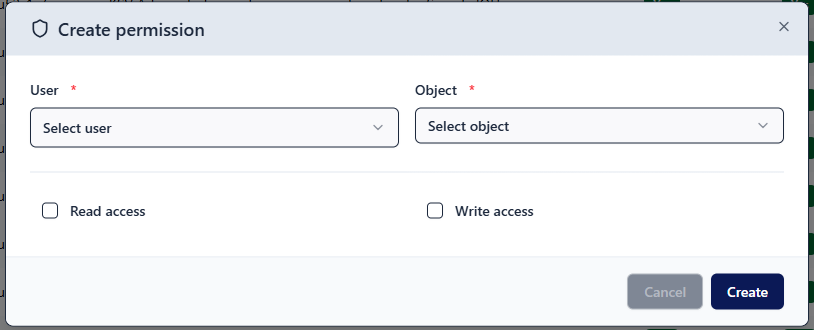
Click on *Add entry* below the table. Now select the relevant user from the dropdown list. Decide for which table you want to create the permission. If the user is to receive write access for the selected table, check the *Write access* checkbox. Add the permission by clicking on *Create*.
### **Editing a permission**
Find the existing permission you wish to edit in the table and click on the pencil icon  to open the editing form. Change the selection and save your changes.
### **Which permissions are required?**
Refer to the table below to see which permissions a user needs in order to perform a specific task in RZBneo.
| Task | Required read rights | Required write rights |
| --- | --- | --- |
| View train driver skills but not edit them | Organisational unit
Infrastructure
Language
Series | |
| Edit train driver data and skills | Infrastructure
Language
Series | **Issuing organisational unit** |
| Issue, suspend, and withdraw supplementary certificates | Organisational unit
Infrastructure
Language
Series
Forms | **Supplementary certificate** |
Note: When granting access rights to the Organisational unit table, the corresponding organisational unit must be selected in the input field that appears!